Finance
Budgets
The Budgets section in Saftwares helps you plan, allocate, and track financial resources across your organization. Here's what you can do in this section:
Budgets overview
The budgets overview provides a comprehensive list of all budgets in your organization. Here you can:
- View a list of all current and past budgets
- Search and filter budgets by various criteria (e.g., fiscal year, department, status)
- Access individual budget details
Creating a new budget
To create a new budget in Saftwares:
- Click the "Create Budget" button in the Budgets section.
- Fill in the required information:
- Budget name
- Fiscal year or period
- Total amount
- Department or project allocation
- Submit the form
Once created:
- The budget will appear in the budgets list
- You can start allocating funds to different categories or departments
- Relevant stakeholders will be notified
This process allows for efficient financial planning and resource allocation.
Editing a budget
To modify budget details:
- Find the budget in the budgets overview list.
- Click on the "Edit" button (the dots icon) next to the budget name.
- In the edit form, you can update various details such as:
- Budget amounts
- Allocation percentages
- Time period
- Make the necessary changes in the editable fields.
- Click "Save" or "Update" to confirm the changes.
Note
Editing capabilities may be restricted based on your role and the budget's status.
Viewing budget details
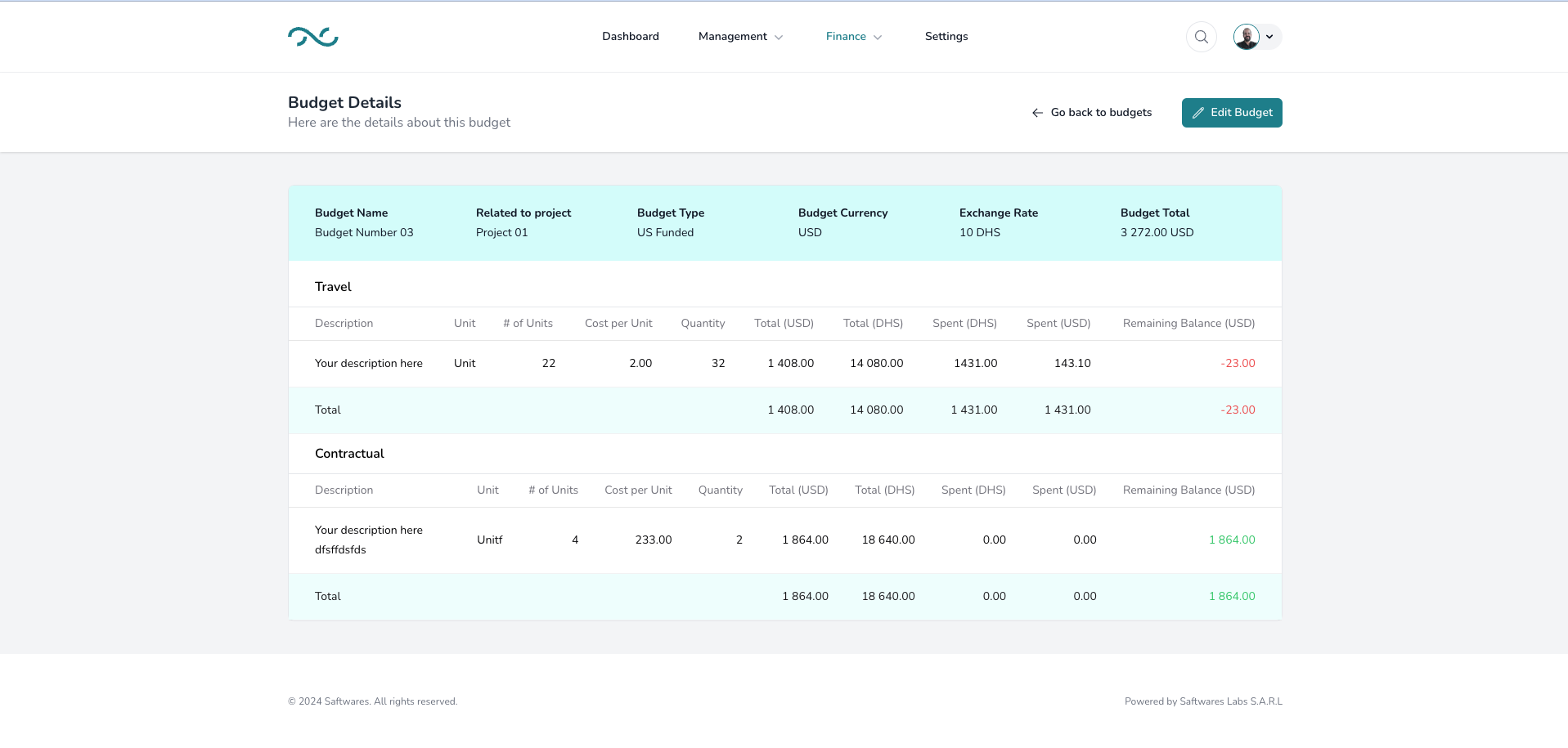
To access comprehensive information about a budget:
- Locate the budget in the overview list.
- Click on the budget name or the "View" button.
- This will open the budget's detailed page, where you can see:
- Overall budget summary
- Breakdown by categories or departments
- Actual vs. planned expenditure
- Historical data and trends
The detailed view provides insights into financial allocation and spending patterns.
Closing or archiving a budget
When a budget period ends:
- Find the budget in the budgets list.
- Click on the "Close" or "Archive" button.
- A confirmation dialog will appear.
- Confirm the action by clicking "Yes" or "Confirm."
Important considerations:
- Closing a budget will finalize all calculations and prevent further modifications.
- Ensure all transactions for the period are recorded before closing.
- Archived budgets remain accessible for reporting and auditing purposes.