Finance
Transactions
The Transactions section in Saftwares allows you to record, track, and manage all financial transactions within your organization. Here's what you can do in this section:
Transactions overview
The transactions overview provides a comprehensive list of all financial activities. Here you can:
- View a list of all income and expenses
- Search and filter transactions by various criteria (e.g., date, amount, category)
- Access individual transaction details
Recording a new transaction
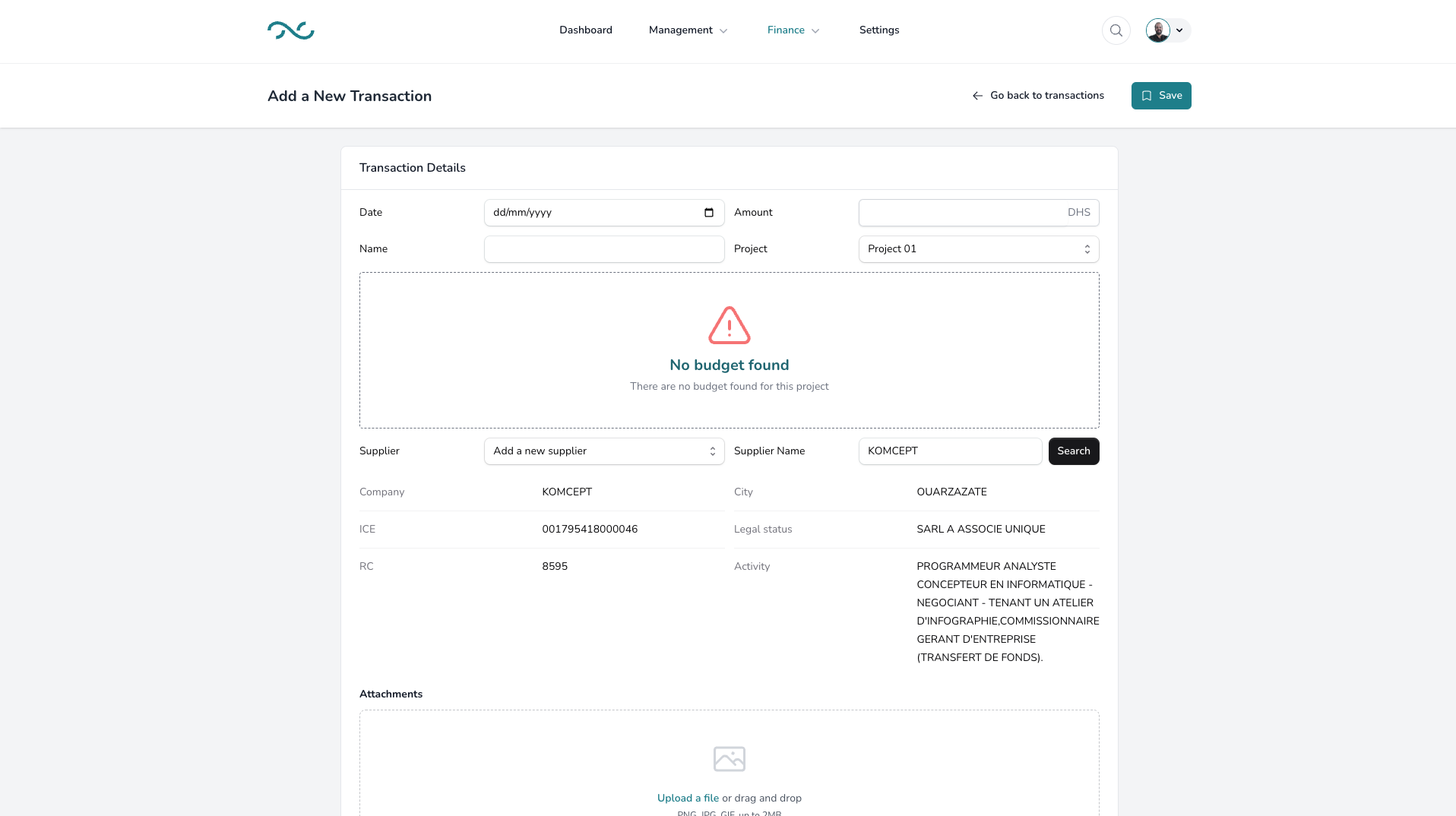
To record a new transaction in Saftwares:
- Click the "New Transaction" button in the Transactions section.
- Fill in the required information:
- Transaction type (income or expense)
- Amount
- Date
- Category
- Description
- Associated project or department
- Submit the form
Once recorded:
- The transaction will appear in the transactions list
- Relevant budgets and financial reports will be updated
- You can attach receipts or supporting documents
This process ensures accurate and timely financial record-keeping.
Editing a transaction
To modify transaction details:
- Locate the transaction in the transactions overview list.
- Click on the "Edit" button (the dots icon) next to the transaction.
- In the edit form, you can update various details such as:
- Amount
- Date
- Category
- Description
- Make the necessary changes in the editable fields.
- Click "Save" or "Update" to confirm the changes.
Note
Editing capabilities may be limited based on your role and the transaction's status.
Viewing transaction details
To access comprehensive information about a transaction:
- Find the transaction in the overview list.
- Click on the transaction ID or the "View" button.
- This will open the transaction's detailed page, where you can see:
- Full transaction details
- Associated documents (e.g., receipts, invoices)
- Approval status (if applicable)
- Impact on relevant budgets
The detailed view provides a complete picture of each financial activity.
Reconciling transactions
For accounting purposes:
- Select transactions to be reconciled.
- Click on the "Reconcile" button.
- Match transactions with bank statements or other financial records.
- Confirm the reconciliation.
This process helps maintain accurate financial records and aids in auditing.