Management
Projects
The Projects section in Saftwares is where you manage and oversee all your organization's initiatives. Here's what you can do in this section:
Projects overview
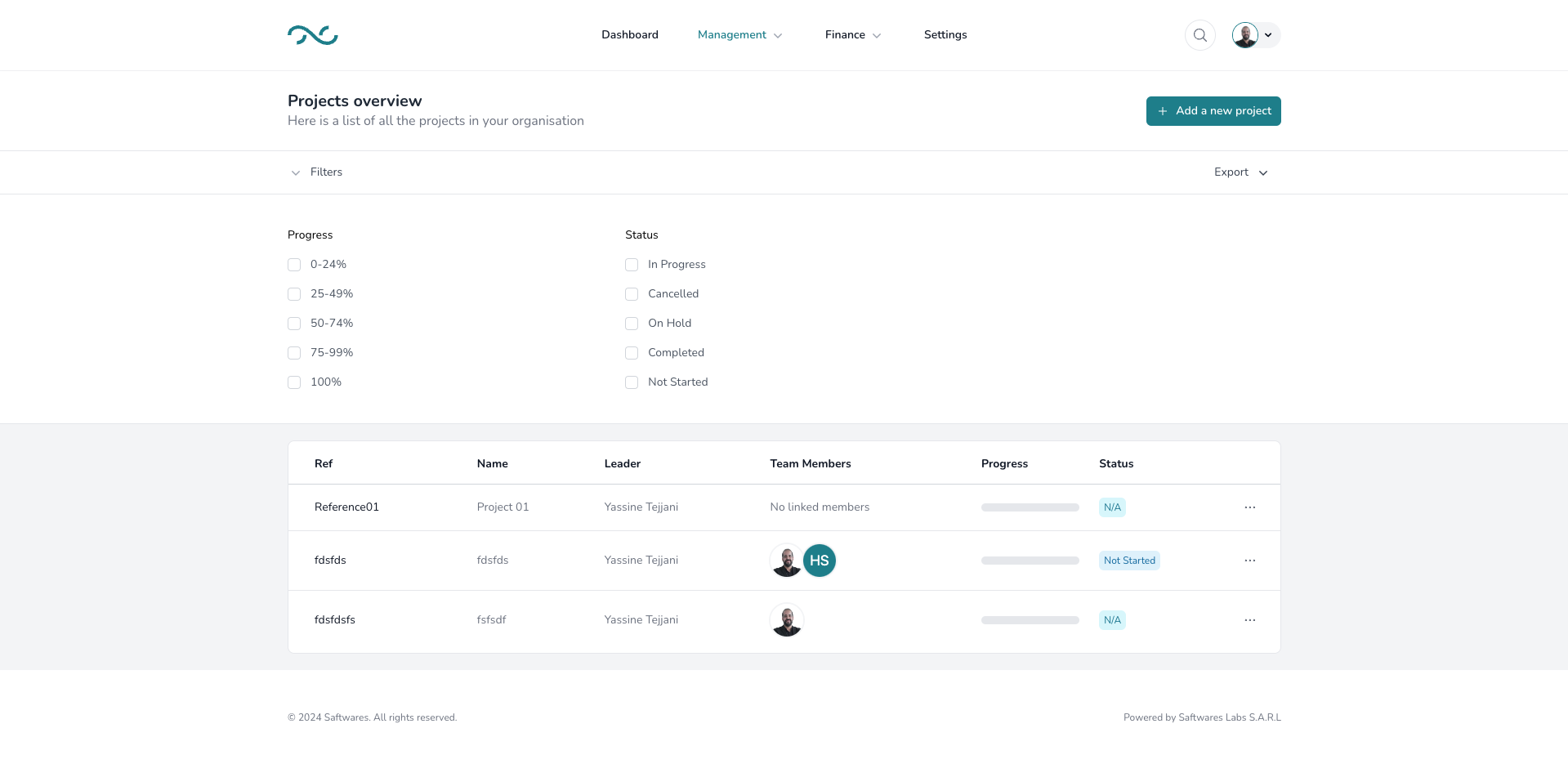
The projects overview provides a comprehensive list of all projects in your organization. Here you can:
- View a list of all ongoing and completed projects
- Search and filter projects by various criteria (e.g., status, manager, date)
- Access individual project details
Creating a new project
To start a new project in Saftwares:
- Click the "Create Project" button in the Projects section.
- Fill in the required information:
- Project name
- Description
- Start and end dates
- Project manager
- Team members
- Submit the form
Once created:
- The project will appear in the projects list
- Team members will be notified of their assignment
- You can start adding tasks and milestones
This process allows you to quickly set up new initiatives and begin collaborative work.
Editing a project
To modify project details:
- Find the project in the projects overview list.
- Click on the "Edit" button (the dots icon) next to the project name.
- In the edit form, you can update various details such as:
- Project information (name, description, dates)
- Team composition
- Budget allocation
- Status updates
- Make the necessary changes in the editable fields.
- Click "Save" or "Update" to confirm the changes.
Note
Editing permissions may vary based on your role within the project and the organization.
Viewing project details
To access comprehensive information about a project:
- Locate the project in the overview list.
- Click on the project name or the "View" button.
- This will open the project's detailed page, where you can see:
- Project overview and description
- Team members and their roles
- Tasks and milestones
- Budget information and expenditures
- Documents and files associated with the project
The detailed view gives you a complete picture of the project's progress and all related information.
Closing or archiving a project
When a project is completed or needs to be archived:
- Find the project in the projects list.
- Click on the "Close" or "Archive" button.
- A confirmation dialog will appear.
- Confirm the action by clicking "Yes" or "Confirm."
Important considerations:
- Closing a project will mark it as completed but keep all data accessible.
- Archiving a project will move it to a separate archived projects section.
- Ensure all tasks are completed and final reports are generated before closing.
- Depending on your role, you may need additional permissions to close or archive projects.
After closing or archiving, the project will be moved from the active projects list but can still be accessed for reference or reporting purposes.