Finance
Suppliers
The Suppliers section in Saftwares helps you manage relationships with vendors and service providers. Here's what you can do in this section:
Suppliers overview
The suppliers overview provides a comprehensive list of all suppliers your organization works with. Here you can:
- View a list of all active and inactive suppliers
- Search and filter suppliers by various criteria (e.g., category, location, status)
- Access individual supplier profiles
Adding a new supplier
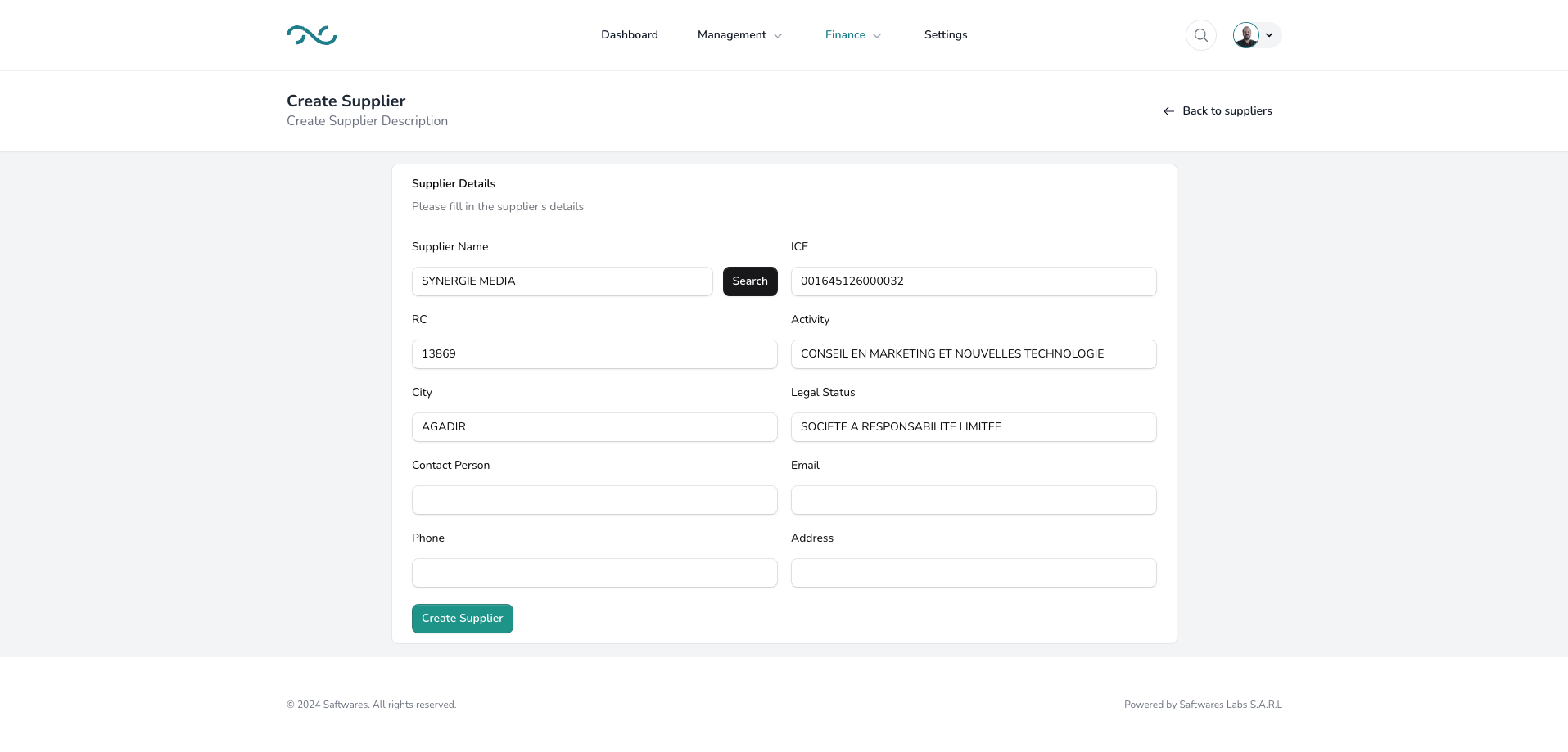
To add a new supplier to Saftwares:
- Click the "Add Supplier" button in the Suppliers section.
- Fill in the required information:
- Supplier name
- Contact details
- Category or type of service
- Payment terms
- Tax information
- Submit the form
Once added:
- The supplier will appear in the suppliers list
- You can start creating orders or linking transactions to this supplier
- Relevant team members can access the supplier information
This process streamlines vendor management and procurement activities.
Editing supplier information
To modify supplier details:
- Find the supplier in the suppliers overview list.
- Click on the "Edit" button (the dots icon) next to the supplier name.
- In the edit form, you can update various details such as:
- Contact information
- Payment terms
- Performance ratings
- Make the necessary changes in the editable fields.
- Click "Save" or "Update" to confirm the changes.
Note
Regular updates ensure accurate supplier information for efficient operations.
Viewing supplier details
To access comprehensive information about a supplier:
- Locate the supplier in the overview list.
- Click on the supplier name or the "View" button.
- This will open the supplier's detailed page, where you can see:
- Full contact information
- History of orders and transactions
- Performance metrics
- Associated documents (e.g., contracts, certifications)
The detailed view provides insights into your relationship with each supplier.
Deactivating a supplier
When you no longer work with a supplier:
- Find the supplier in the suppliers list.
- Click on the "Deactivate" button.
- A confirmation dialog will appear.
- Confirm the action by clicking "Yes" or "Confirm."
Important considerations:
- Deactivating a supplier does not delete their information but prevents new orders.
- Historical data related to the supplier is retained for reporting purposes.
- You can reactivate a supplier if you resume working with them in the future.