Management
Members
The Members section in Saftwares is your central hub for managing your organization's human resources. Here's what you can do in this section:
Members overview
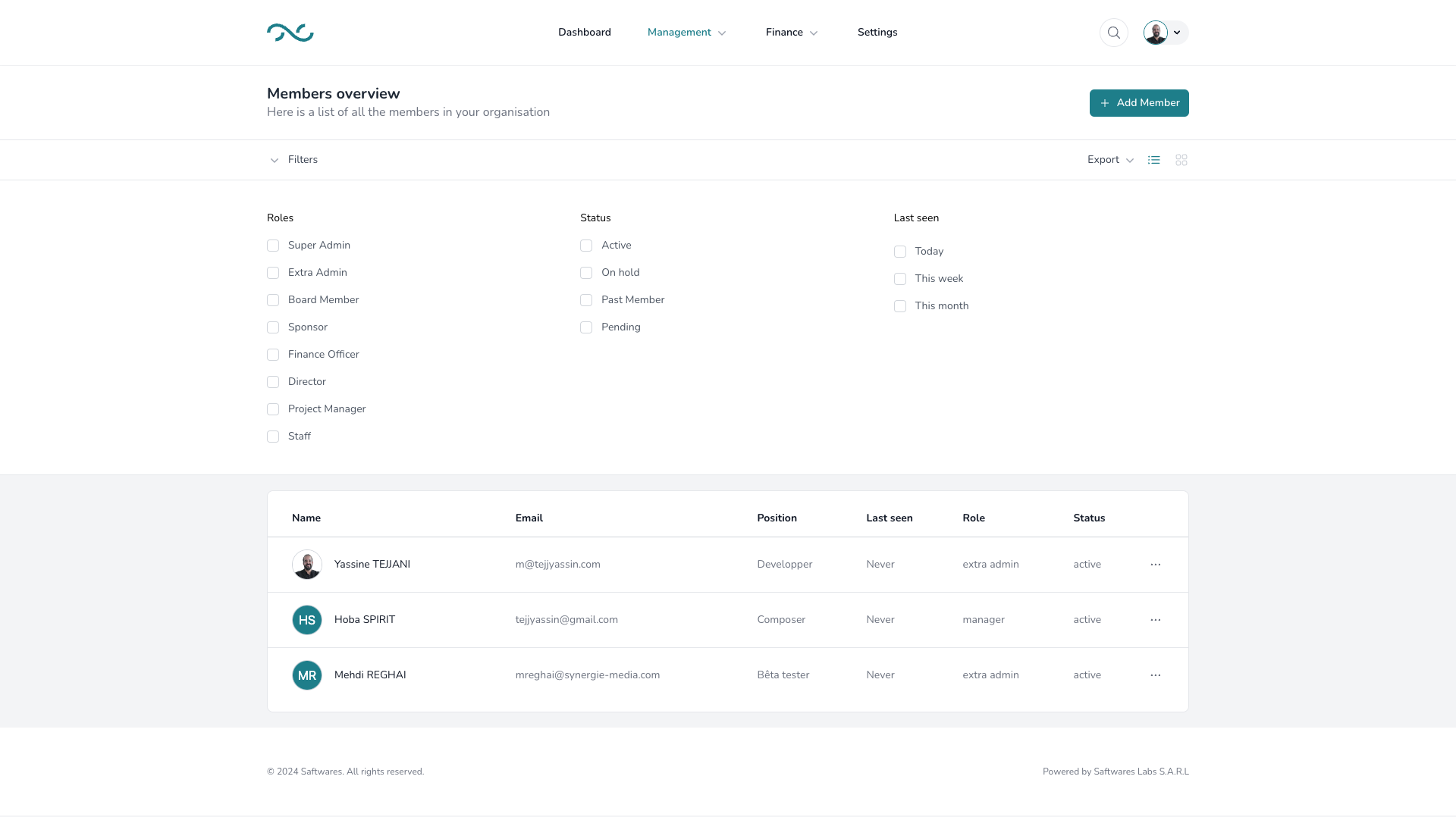
The members overview is an index of all the members of in your organization, here you can :
- View a list of all members in your organization
- Search and filter members by various criteria (e.g., role, status, last seen)
- Access individual member profiles
Add a new member
Inviting a new member to join your organization in Saftwares is a straightforward process:
- Click the "Add Member" button in the Members section.
- Fill in the required information:
- First name
- Last name
- Email address
- Assigned role in the organization
- Submit the form
Saftwares takes care of the rest:
- An invitation email is automatically sent to the new member's email address.
- The email contains instructions for joining the organization's Saftwares account.
- New members will be prompted to complete their profile by filling in additional information when they first log in.
This streamlined process ensures that new team members can be quickly added to the system while allowing them to securely input their own personal details.
Editing a member
To modify a member's information:
- Locate the member in the members overview list.
- Click on the "Edit" button (the dots icon) next to the member's name.
- In the edit form, you can update various details such as:
- Personal information (name, contact details)
- Role within the organization
- Department assignment
- Access permissions
- Make the necessary changes in the editable fields.
- Click "Save" or "Update" to confirm the changes.
Note
Some fields may be restricted based on your role and permissions within Saftwares.
Viewing a member's profile
To view detailed information about a member:
- Find the member in the overview list.
- Click on the member's name or the "View" button.
- This will open the member's profile page, where you can see:
- Personal and contact information
- Project assignments
- Any custom fields your organization has set up
The profile view provides a comprehensive overview of the member's status and contributions within your organization.
Deleting a member
When a member leaves your organization or needs to be removed from Saftwares:
- Locate the member in the members list.
- Click on the "Delete" or "Remove" button.
- A confirmation dialog will appear to prevent accidental deletions.
- Confirm the deletion by clicking "Yes" or "Confirm."
Important considerations:
- Deleting a member is permanent and cannot be undone.
- Consider deactivating the account instead of deleting if you need to maintain records.
- Ensure all necessary data transfers or project reassignments are completed before deletion.
- Depending on your role, you may need additional permissions to delete members.
After deletion, the member will no longer have access to Saftwares, and their account information will be removed from the system.