Management
Travel Requests
The Travel Requests section in Saftwares helps you manage and track all travel-related activities within your organization. Here's what you can do in this section:
Travel Requests overview
The travel requests overview provides a comprehensive list of all travel requests in your organization. Here you can:
- View a list of all pending, approved, and completed travel requests
- Search and filter requests by various criteria (e.g., status, requester, date)
- Access individual travel request details
Submitting a new travel request
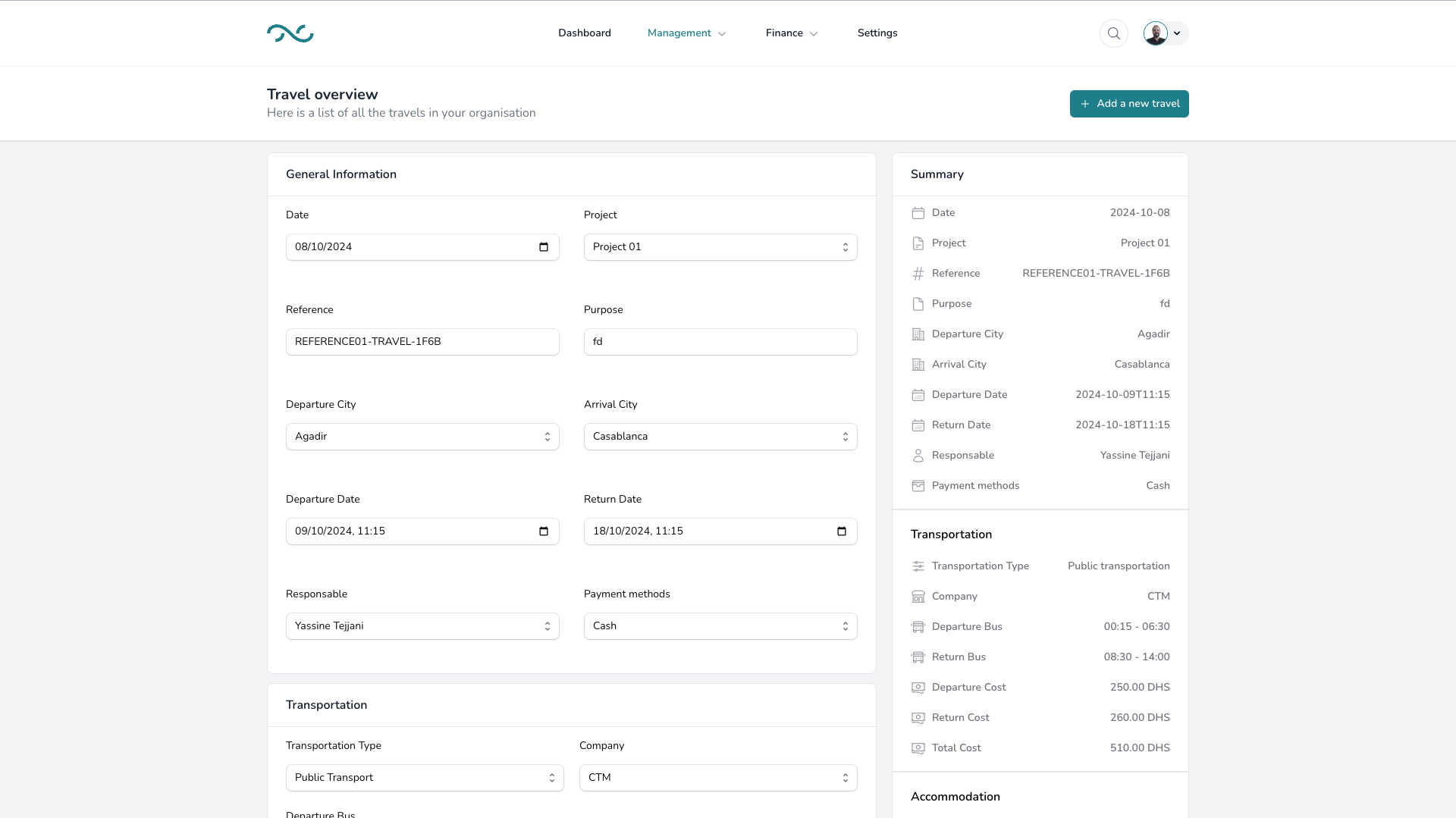
To submit a new travel request in Saftwares:
- Click the "New Travel Request" button in the Travel Requests section.
- Fill in the required information:
- Purpose of travel
- Destination
- Start and end dates
- Estimated expenses
- Required documents (e.g., visa, passport)
- Submit the form
Once submitted:
- The request will appear in the travel requests list
- Relevant approvers will be notified
- You can track the status of your request
This process streamlines travel planning and approval within your organization.
Editing a travel request
To modify a travel request:
- Locate the request in the travel requests overview list.
- Click on the "Edit" button (the dots icon) next to the request.
- In the edit form, you can update various details such as:
- Travel dates
- Estimated expenses
- Supporting documents
- Additional notes
- Make the necessary changes in the editable fields.
- Click "Save" or "Update" to confirm the changes.
Note
Editing capabilities may be limited once a request has been approved or if you're not the original requester.
Viewing travel request details
To access comprehensive information about a travel request:
- Find the request in the overview list.
- Click on the request ID or the "View" button.
- This will open the request's detailed page, where you can see:
- Request overview and purpose
- Travel itinerary
- Expense estimates and breakdowns
- Approval status and comments
- Attached documents
The detailed view provides all necessary information for both travelers and approvers.
Approving or rejecting a travel request
For users with appropriate permissions:
- Navigate to the travel request requiring action.
- Review the request details thoroughly.
- Click on the "Approve" or "Reject" button.
- If rejecting, provide a reason in the comment box.
- Confirm your decision.
Important considerations:
- Approval may trigger notifications to the finance department for budget allocation.
- Rejections should always be accompanied by clear explanations.
- Multiple approval levels may be required depending on organizational policy.
Completing a travel request
After the travel has concluded:
- Find the completed travel request in the list.
- Click on the "Complete" or "Close" button.
- Submit any required post-travel documentation (e.g., expense reports, receipts).
- Provide a brief summary of the trip outcomes if required.
- Confirm the completion.
After completion, the travel request will be moved to the archive, but can still be accessed for reporting and auditing purposes.